
How to Use Excel Formula to Send WhatsApp Message? Best Guide 2026
Introduction
Managing communication becomes easier when you use Excel Formula to Send WhatsApp Message for both personal and business needs. Instead of manually typing every contact, you can rely on your Excel contact list to send WhatsApp through Excel in just a few clicks. This method allows you to send bulk WhatsApp message from Excel, making it perfect for marketing campaigns, customer support, and quick updates. Many businesses look for solutions on how to send bulk WhatsApp messages from Excel, and with the right tools, you can even automate sending WhatsApp message, video, image, PDF, or file from Excel.
From preparing and customizing content with WhatsApp preparing messages to learning how to send Excel file in WhatsApp or even how to share Excel sheet on WhatsApp, this approach covers it all. Whether you want to copy paste Excel table in WhatsApp, connect WhatsApp to Excel, or explore a bulk WhatsApp sender, using Excel Formula to Send WhatsApp Message makes the process smooth, simple, and highly efficient.
This guide is broght to you by Premium Sender.
Why Use Excel Formula to Send WhatsApp Message?
Using Excel Formula to Send WhatsApp Message makes communication faster and more organized. Instead of typing numbers manually, you can use your Excel contact list to send WhatsApp through Excel and even manage campaigns. This method also helps businesses send bulk WhatsApp message from Excel with accuracy and personalization.
1. Save Time and Effort
By using Excel Formula to Send WhatsApp Message, you can quickly send bulk WhatsApp message from Excel without copying numbers one by one.
2. Manage Large Contact Lists Easily
An Excel contact list helps you organize customer data, making it simple to send WhatsApp through Excel to hundreds of people in minutes.
3. Personalize Every Message
With formulas, you can prepare WhatsApp messages that include customer names or details, making bulk WhatsApp sender campaigns more effective.
4. Automate Messaging
You can automate sending WhatsApp message, video, image, or file directly from Excel, reducing manual work and errors.
5. Cost-Effective for Businesses
Using Excel to WhatsApp bulk message is a free and simple way to handle communication without investing in expensive software.
Create Excel Contact List for WhatsApp Messaging
To send WhatsApp through Excel smoothly, the first step is to prepare an Excel contact list. A well-organized sheet helps you send bulk WhatsApp message from Excel without errors. By formatting your data correctly, you can easily use Excel Formula to Send WhatsApp Message and automate communication across large groups.
1. Organize Contact Details
Start by adding customer names, phone numbers, and other details in your Excel contact list to make it ready for WhatsApp bulk sender campaigns.
2. Use Proper Number Formatting
Ensure all phone numbers are saved with the correct country code so you can send WhatsApp through Excel without delivery failures.
3. Keep Separate Columns for Personalization
Add columns like “Name” or “Message” to create preparing messages WhatsApp templates that can be personalized for each contact.
4. Validate Data Before Sending
Check for missing digits or errors in your Excel to WhatsApp list to avoid failed bulk WhatsApp sender deliveries.
5. Save the File in Compatible Format
Export or save the Excel sheet in CSV format, which is the easiest way to connect Excel to WhatsApp and apply Excel Formula to Send WhatsApp Message effectively.
Creating Personalized WhatsApp Message Templates in Excel
Personalization is the key to effective communication, and with Excel Formula to Send WhatsApp Message you can easily customize content for every contact. Instead of sending the same text, you can prepare WhatsApp messages in Excel that include customer names, order details, or any other specific information. This makes your campaigns more engaging and helps you send bulk WhatsApp message from Excel with better response rates.
1. Add a Message Column in Excel
Create a dedicated column for messages in your Excel contact list to prepare WhatsApp messages that can be personalized.
2. Use Concatenate or Formula Functions
With formulas like CONCATENATE, you can merge names with message text to apply Excel Formula to Send WhatsApp Message in a customized way.
3. Insert Placeholders for Dynamic Data
Use placeholders such as {Name} or {OrderID} in your message column to create preparing messages WhatsApp templates.
4. Adjust Messages for Different Campaigns
Whether it’s promotions, reminders, or updates, customize your Excel to WhatsApp templates for every type of communication.
5. Preview Before Sending
Always review the personalized messages in your Excel sheet before using a bulk WhatsApp sender to avoid mistakes.
Send WhatsApp Messages in Bulk, Faster & Smarter
Automate personalized WhatsApp campaigns, send messages with multiple attachments, and reach thousands of contacts effortlessly.

Methods to Send WhatsApp Messages from Excel
Sending WhatsApp messages from Excel is a practical way to manage bulk communication. You can use browser extensions, hyperlink formulas, or VBA automation to connect your Excel contact list with WhatsApp Web. These methods help businesses and individuals save time and send personalized messages quickly.
Method 1: Using Browser Extensions
This method is highly effective for sending large numbers of messages through an Excel WhatsApp sender.
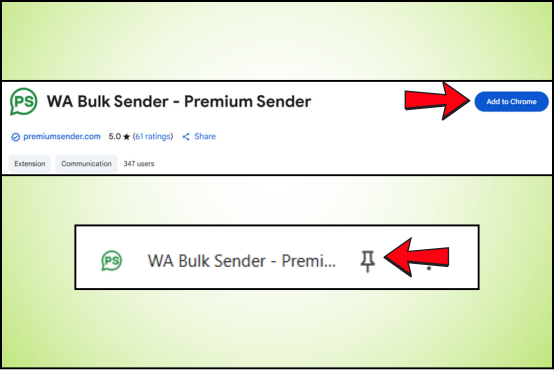
Step 1: Install the WhatsApp Bulk Message Sender
Download Premium Sender Chrome extension to start sending bulk WhatsApp messages instantly. This WhatsApp bulk message sender lets you send WhatsApp without saving number, making it easier to reach unknown contacts directly.
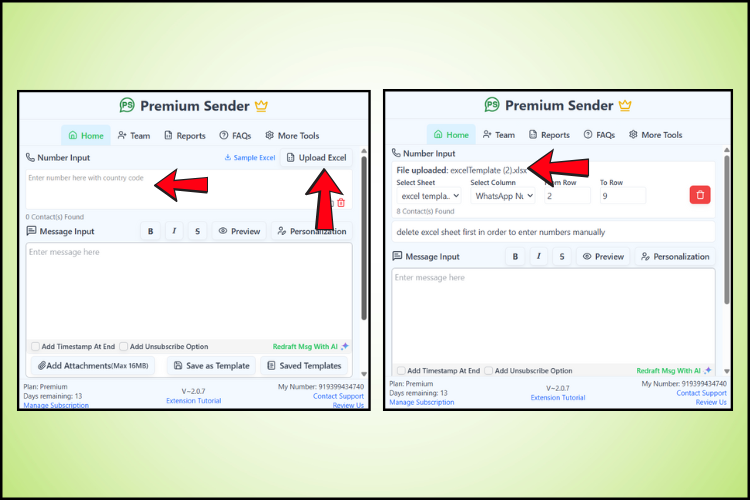
Step 2: Upload Excel Sheet
Add customer or team member numbers manually or upload your list using Excel or CSV to prepare your campaign. With Premium Sender, you can send WhatsApp message without saving number in bulk and manage contacts easily, saving valuable time during outreach.

Step 3: Create Personalized Messages
Craft engaging, personalized messages using dynamic variables like names, departments, or shift timings. This WhatsApp bulk SMS sender tool allows you to customize every message, ensuring better engagement. Personalizing messages for each recipient makes it easy to share updates or assign tasks efficiently.
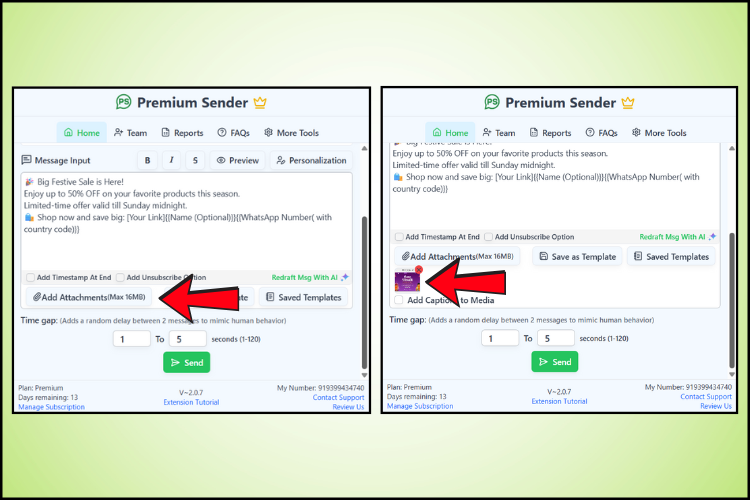
Step 4: Attach Important Files
Include up to 7 attachments like brochures, images, videos, PDFs, or other important documents to enhance your campaigns. With this WhatsApp bulk message software, you can send WhatsApp message without saving number and still share multimedia effortlessly to make your outreach more impactful.
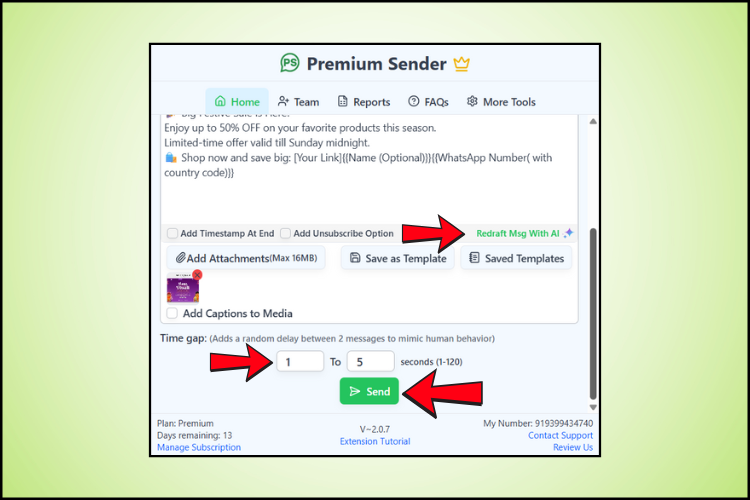
Step 5: Use AI Re-drafter and Set Delay to avoid WhatsApp Ban and Send
You can use AI Re-drafter if you want to edit the message. Use smart delay settings to prevent WhatsApp bans and ensure safe delivery. Premium Sender allows you to send bulk WhatsApp messages smoothly while maintaining compliance. Simply click send to deliver direct WhatsApp messages and boost your productivity without manually adding contacts.
Method 2: Using Hyperlink Formula in Excel (For Small Batches)
This method works well if you want to send WhatsApp messages from Excel manually to individual contacts.
Step 1: Enter Contact Data
In your Excel sheet, create separate columns for phone numbers, names, and the message text.
Step 2: Insert Hyperlink Formula
Use the Excel HYPERLINK function to generate clickable links for each contact:
=HYPERLINK("https://web.whatsapp.com/send?phone="&A2&"&text="&ENCODEURL(B2),"Send to "&C2)
A2: Contact phone number
B2: Message text
C2: Contact name
Step 3: Click the Links
Click the generated link in Excel. It will open WhatsApp Web with the message already filled in.
Step 4: Send the Message
Simply press the “Send” button to deliver the message.
Method 3: Using VBA Scripts (For Advanced WhatsApp Web Automation)
If you prefer automation and have programming knowledge, VBA can be used to automate sending WhatsApp messages from Excel.
Step 1: Open Developer Tools in Excel
Enable the Developer tab in Excel and create a new VBA macro.
Step 2: Write the Script
Write a VBA script that loops through your Excel contacts, opens WhatsApp Web, and prepares the message.
Step 3: Automate Actions
The VBA script can automatically select contacts, insert the text, and prepare to send messages.
Step 4: Run the Macro
Execute the VBA macro. It will start sending messages one by one based on your Excel data.
Mistakes to Avoid in Order to Use Excel Formula to Send WhatsApp Message
Using Excel Formula to Send WhatsApp Message can save time and make communication more efficient, but many users face errors when setting it up. When applying Excel Formula to Send WhatsApp Message, a few small mistakes can prevent your messages from being delivered correctly. Understanding these issues will help you achieve smooth results.
1. Incorrect Phone Number Formatting
Always include the correct country code and avoid spaces or extra symbols. WhatsApp will not recognize numbers that are not in the proper format.
2. Not Encoding Special Characters
Characters like &, %, or ? must be properly encoded in the formula link. If skipped, the hyperlink will fail and your message will not open in WhatsApp.
3. Using Merged Cells in Excel
Keep your phone numbers and messages in separate, unmerged columns. Merged cells often cause formula errors and disrupt the process.
4. Forgetting to Test the Hyperlink Formula
Test the formula on a few contacts before bulk use. This ensures your setup is correct and avoids time wasted on fixing later.
5. Overlooking Browser and WhatsApp Web Compatibility
Make sure you are logged into WhatsApp Web and using a supported browser. Sometimes the issue lies with the browser session, not Excel.
Best Practices for Bulk WhatsApp Messaging using Excel Formulas
Bulk WhatsApp Messaging using Excel formulas is an efficient way to send messages to multiple contacts in one go. It helps businesses save time, maintain consistency, and improve communication quality. Many organizations rely on Bulk WhatsApp Messaging using Excel formulas to streamline customer interactions and marketing campaigns.
1. Keep a Clean and Updated Contact List
Ensure your Excel sheet has accurate phone numbers with the right country codes. A clean list minimizes delivery failures and avoids unnecessary errors.
2. Personalize Messages with Dynamic Fields
Add columns for names, locations, or custom details to insert into message templates. This gives bulk messages a personal touch, making them more engaging.
3. Test on a Small Batch Before Bulk Sending
Send a trial to a few contacts first. Testing ensures formulas are working correctly and prevents large-scale mistakes.
4. Use Short and Clear Message Templates
Keep messages concise and easy to read. Short templates improve response rates and make formatting simpler.
5. Stay Compliant with WhatsApp Policies
Do not overuse promotional content. Following WhatsApp rules protects your account from being restricted.
Enhancing Bulk WhatsApp Messaging with Excel Formulas
Using Bulk WhatsApp Messaging with Excel formulas helps businesses maintain accuracy and add personalization to their campaigns. When your Excel sheet is well-structured, it minimizes errors and makes WhatsApp communication smoother. Below are some practical ways to make the most of Excel while preparing for bulk messaging.
1. Maintain Data Accuracy with Validation Rules
Data accuracy is essential when preparing contacts for bulk WhatsApp messaging. Use Excel’s Data Validation feature to ensure numbers are formatted correctly, such as applying a rule to accept only digits or restricting input length. This prevents delivery failures and keeps your list clean.
2. Standardize Contact Formats
A consistent contact format is critical for Excel-based WhatsApp communication. Apply custom formats or formulas to automatically add country codes. This ensures that every number in your list is WhatsApp-ready without needing manual corrections.
3. Automate Greetings with CONCATENATE or TEXTJOIN
Excel formulas such as CONCATENATE or TEXTJOIN let you combine data fields like first name and last name into personalized greetings. For example, you can generate “Hi John Smith” automatically for each row, making bulk WhatsApp messaging appear more personal.
4. Build Dynamic Message Templates
Create dynamic templates in Excel where messages automatically pull recipient-specific details from cells. Whether it’s names, order IDs, or appointment times, formulas allow you to send tailored WhatsApp messages that resonate better with your audience.
5. Highlight Errors Before Sending
Excel’s conditional formatting helps flag empty cells, invalid numbers, or missing details. This extra check ensures your WhatsApp campaign doesn’t fail because of overlooked data issues.
How Excel Formulas Simplify WhatsApp Communication?
Using Excel formulas to send WhatsApp message makes communication smoother and more efficient. Instead of sending messages manually, you can use an Excel contact list, message templates, and formulas to automate the process. This approach helps in reaching multiple contacts at once while still keeping the personalization intact. By relying on Excel formulas to send WhatsApp message, businesses and individuals save both time and effort while ensuring accuracy in delivery.
1. Quick Automation of Messages
Excel formulas help automate repetitive WhatsApp tasks by generating direct message links for multiple contacts in just seconds.
2. Easy Personalization for Each Contact
With simple Excel functions, you can insert names or details into messages, making WhatsApp communication more personalized and engaging.
3. Reduced Manual Errors
By using formulas instead of manual typing, you can avoid copy-paste mistakes and ensure every WhatsApp message is accurate.
4. Time-Saving for Bulk Messaging
Managing hundreds of numbers becomes much easier when formulas prepare ready-to-send messages directly from your Excel sheet.
5. Organized Messaging Workflow
Excel allows you to keep your contact list, WhatsApp templates, and formulas in one place, keeping communication structured and efficient.
Conclusion: Use Excel Formula to Send WhatsApp Message
Using Excel Formula to Send WhatsApp Message makes it simple for businesses and individuals to manage communication. With an organized excel contact list, you can prepare messages WhatsApp-ready and send WhatsApp through Excel in just a few clicks. This method helps you send bulk messages on WhatsApp from Excel, automate sending WhatsApp message/video/image/pdf/file from Excel, and even enviar WhatsApp via Excel for multilingual needs. It’s an efficient way to send WhatsApp message from Excel without errors and optimize your workflow.
If you are exploring how to send bulk WhatsApp messages from Excel or looking for a bulk WhatsApp sender, this approach offers complete flexibility. You can send free unlimited WhatsApp bulk message from Excel, share Excel sheets on WhatsApp, copy paste Excel table in WhatsApp, and even manage WhatsApp to Excel exports. Whether you need a sender for WhatsApp, WhatsApp bulk sender, or simply to learn how to send Excel file in WhatsApp, Excel to WhatsApp bulk message integration is the ultimate solution to simplify and scale your communication.
FAQ's
How to send WhatsApp message from Excel sheet formula?
Using an Excel Formula to Send WhatsApp Message is one of the easiest ways to connect Excel with WhatsApp. By applying the =HYPERLINK() function, you can link your excel contact list directly to the WhatsApp API and create clickable links that open chats instantly.
This formula allows you to open WhatsApp Web with the number from cell A1 and a pre-written message from cell B1. The Excel Formula to Send WhatsApp Message is also practical for those who want to send bulk messages on WhatsApp from excel, automate sharing files, or quickly send personalized texts. With this method, you can save time, prepare accurate messages, and make communication easier. That’s why many prefer the Excel Formula to Send WhatsApp Message when managing WhatsApp bulk messaging.
Can I automatically send WhatsApp message from Excel free?
Yes, you can automatically send free WhatsApp messages from Excel using Premium Sender, which integrates with WhatsApp Web to manage your excel contact list and send bulk WhatsApp messages directly. This tool makes it simple to prepare messages WhatsApp-style, share excel sheets on WhatsApp, or even send files such as images, videos, and PDFs without hassle.
Another effective option is to use an Excel Formula to Send WhatsApp Message, which creates clickable links for individual chats. For businesses looking to send WhatsApp through Excel or send bulk WhatsApp messages from Excel, Premium Sender ensures smooth automation and accurate delivery. By combining your data with the Excel Formula to Send WhatsApp Message, you can easily send bulk messages on WhatsApp from Excel, handle large campaigns, and even copy paste Excel tables in WhatsApp. The Excel Formula to Send WhatsApp Message makes communication fast and efficient while Premium Sender enhances the process for unlimited reach.
How to create WhatsApp link in Excel Formula?
To create a clickable WhatsApp link in an Excel cell, you can use the =HYPERLINK() function with the proper format. The Excel Formula to Send WhatsApp Message looks like:
=HYPERLINK("https://wa.me/PHONE_NUMBER", "LINK_TEXT")
Here, replace PHONE_NUMBER with the contact’s number including the country code (without spaces or dashes), and LINK_TEXT with your chosen text like “Send Message.”
You can also customize this Excel Formula to Send WhatsApp Message by appending a predefined text. For example:
=HYPERLINK("https://wa.me/PHONE_NUMBER?text=Hello%20there!", "Send with Message")
This allows you to send WhatsApp through Excel directly, making it easier to bulk send WhatsApp messages, prepare links for multiple contacts in an Excel sheet, and share ready-to-click message links. Using the Excel Formula to Send WhatsApp Message ensures fast communication and helps automate message sending directly from your spreadsheet.
How to send WhatsApp message from Excel sheet download file?
To send WhatsApp messages from an Excel file, you can rely on the Excel Formula to Send WhatsApp Message, which makes the process simple and direct. Start by preparing your Excel sheet with phone numbers (including country codes) and message content. Using the Excel Formula to Send WhatsApp Message, you can generate clickable message links or map the data for automated sending. This method ensures faster communication, and with the Excel Formula to Send WhatsApp Message, you can manage bulk WhatsApp messages efficiently right from your spreadsheet.
How to use =HYPERLINK Excel Formula for WhatsApp messaging?
To create a clickable WhatsApp link in Excel, you can use the Excel Formula to Send WhatsApp Message with the =HYPERLINK() function. This formula combines the wa.me or api.whatsapp.com URL structure with a phone number and an optional pre-defined message using the &text= parameter.
Here’s the formula example:
=HYPERLINK("https://wa.me/" & B2 & "?text=" & C2, "Send Message to " & A2)
B2: The cell containing the international phone number (e.g., 15551234567, no spaces or symbols).
C2: The cell containing the message you want to send (e.g., “Hello, I would like to inquire about…”).
A2: The cell containing the contact’s name, so the link text is more personalized.
With this Excel Formula to Send WhatsApp Message, you can generate custom links directly in your sheet and send WhatsApp messages faster. Using the Excel Formula to Send WhatsApp Message in this way helps personalize communication while staying efficient.
How to send bulk messages on WhatsApp using Excel?
To send bulk WhatsApp messages from Excel, first prepare an Excel file with phone numbers and personalized messages. You can then use simple methods like a VBA script for automation or create hyperlink formulas that generate clickable links to open WhatsApp chats.
Using a VBA script provides complete automation, while hyperlink formulas give you a more manual but highly controlled way to personalize every message. With the right setup, you can easily manage large contact lists and communicate efficiently.
This approach makes it simple to Send Bulk WhatsApp Messages From Excel without complications. Whether for business promotions or client updates, learning how to Send Bulk WhatsApp Messages From Excel ensures faster communication. Overall, by applying these techniques, you can Send Bulk WhatsApp Messages From Excel in a professional and personalized way.
How to send WhatsApp bulk message with image using Excel?
To send a WhatsApp bulk message with an image from Excel, you need a third-party tool or extension, such as a WhatsApp API service, since WhatsApp itself does not allow direct bulk messaging with images from Excel. These tools help bridge the gap between your Excel data and WhatsApp.
The general process is as follows:
Step 1: Prepare your Excel file with phone numbers and personalized message text, and if needed, include a placeholder for the image.
Step 2: Install the chosen tool or extension and connect it to your WhatsApp account.
Step 3: Upload both the Excel file and the image file into the tool.
Step 4: Customize your message template in the tool’s interface to combine text and images.
Step 5: Launch the campaign to send your bulk WhatsApp messages along with the image to all contacts.
How to send WhatsApp message from Excel VBA?
Sending WhatsApp messages from Excel VBA can be done using automation and the WhatsApp Web API. With a simple VBA script, you can create personalized WhatsApp chat links directly from your Excel sheet and open them in your browser. This allows you to send WhatsApp messages from Excel without manually typing each number or message.
For WhatsApp automation, VBA can loop through phone numbers and messages stored in your Excel file. Each row can generate a unique WhatsApp Web link, enabling you to send WhatsApp bulk messages quickly and efficiently. Businesses often use this method for customer communication, order updates, and lead follow-ups.
This kind of Excel VBA WhatsApp integration is more controlled than using random third-party apps, and it helps in managing large-scale outreach directly from your spreadsheet. By combining WhatsApp Web API links with VBA automation, you can save time and reduce errors while sending messages.