
How to Send Bulk WhatsApp Message from Excel File?

Premium Sender allows you to send bulk WhatsApp message from Excel file efficiently without manually adding contacts.
Excel to WhatsApp automation helps personalize messages and streamline campaigns directly from your spreadsheet.
You can attach images, videos, PDFs, or documents to make messages more engaging.
Smart scheduling and delay settings reduce the risk of WhatsApp bans while sending messages.
Real-time tracking lets you monitor delivery, responses, and engagement for better campaign performance.
Bulk messaging from Excel is useful for marketing campaigns, notifications, surveys, team communication, and personalized offers.
Introduction
In today’s digital world, WhatsApp is one of the most popular messaging platforms. If you’re wondering how to send bulk WhatsApp message from Excel file, you’re in the right place! Learning how to send bulk WhatsApp messages from Excel allows businesses and marketers to communicate with thousands of customers easily. Whether you’re looking to send WhatsApp messages from Excel, automate the process, or simply save time, this guide will walk you through everything you need to know about Excel to WhatsApp automation and how to send WhatsApp message from an Excel sheet. Let’s dive into how you can automatically send bulk whatsapp message from excel file and avoid any issues like number blocking. Premium Sender is a perfect solution!
You can send bulk WhatsApp messages from Excel file easily using Premium Sender, a reliable automation tool designed for WhatsApp marketing. Simply organize your recipient data, including phone numbers with country codes, in an Excel sheet and connect it to Premium Sender. The tool will automatically send WhatsApp messages from Excel, allowing you to send bulk WhatsApp messages to multiple contacts efficiently and without adding them to your phone.
Why Use Excel for WhatsApp Bulk Messaging?
Using Excel to send bulk WhatsApp message from Excel file is one of the most efficient ways to manage large-scale communication. With Excel WhatsApp automation and Excel to WhatsApp automation, businesses can organize data, personalize messages, and automate campaigns directly from their Excel sheet. This makes it easier to send WhatsApp messages from Excel quickly and accurately while maintaining a professional approach.
1. Simplified Data Management
Excel makes it easy to store, edit, and organize contact information for your WhatsApp bulk messaging from Excel campaigns. You can easily update names, phone numbers, and message content before you send bulk WhatsApp message from Excel file.
2. Easy Personalization with Excel to WhatsApp Automation
Using Excel to WhatsApp automation allows you to personalize each message dynamically. Add customer names, order details, or locations directly from your Excel sheet to make every WhatsApp message from Excel more engaging.
3. Faster Campaign Execution
When you send bulk WhatsApp messages from Excel, you eliminate manual effort. Excel WhatsApp automation tools like Premium Sender let you send thousands of messages instantly while maintaining accuracy and consistency.
4. Better Control and Tracking
Managing WhatsApp campaigns through Excel gives you full control over your data. You can track who received your messages, monitor responses, and optimize future campaigns when you send WhatsApp through Excel.
5. Cost-Effective Automation
Excel WhatsApp automation is budget-friendly compared to other marketing systems. You can send bulk WhatsApp message from Excel file without expensive CRM tools, making it ideal for small and medium businesses.
6. Integration with Premium Sender
Pairing Excel with Premium Sender enhances your automation process. It helps you send bulk WhatsApp messages from Excel seamlessly, attach multimedia files, and monitor campaign performance efficiently.
How to Send Bulk WhatsApp Message from Excel File?
To send bulk WhatsApp message from Excel file is the first step to unlocking the potential of bulk messaging for your business. If you want to send bulk WhatsApp message from Excel file easily and effectively, follow these steps to send WhatsApp messages from Excel seamlessly:
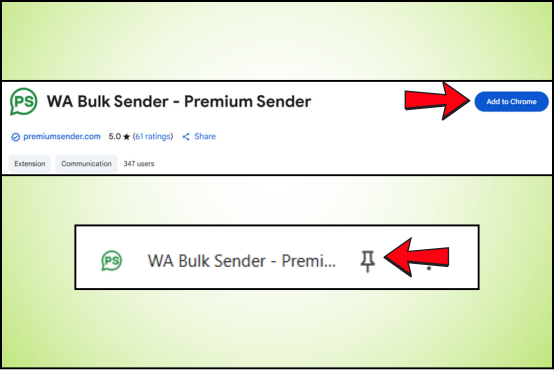
Step 1: Install the WhatsApp Bulk Message Sender
Download Premium Sender Chrome extension to start sending bulk WhatsApp messages instantly. This WhatsApp bulk message sender lets you send WhatsApp without saving number, making it easier to reach unknown contacts directly.
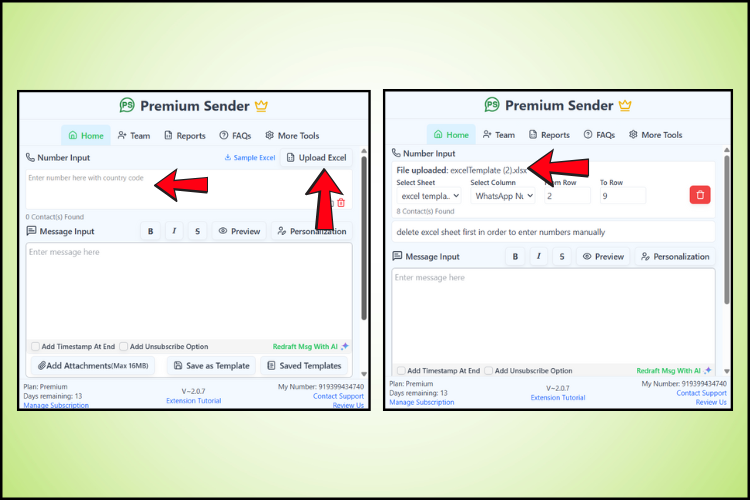
Step 2: Upload Excel Sheet
Add customer or team member numbers manually or upload your list using Excel or CSV to prepare your campaign. With Premium Sender, you can send WhatsApp message without saving number in bulk and manage contacts easily, saving valuable time during outreach.

Step 3: Create Personalized Messages
Craft engaging, personalized messages using dynamic variables like names, departments, or shift timings. This WhatsApp bulk SMS sender tool allows you to customize every message, ensuring better engagement. Personalizing messages for each recipient makes it easy to share updates or assign tasks efficiently.
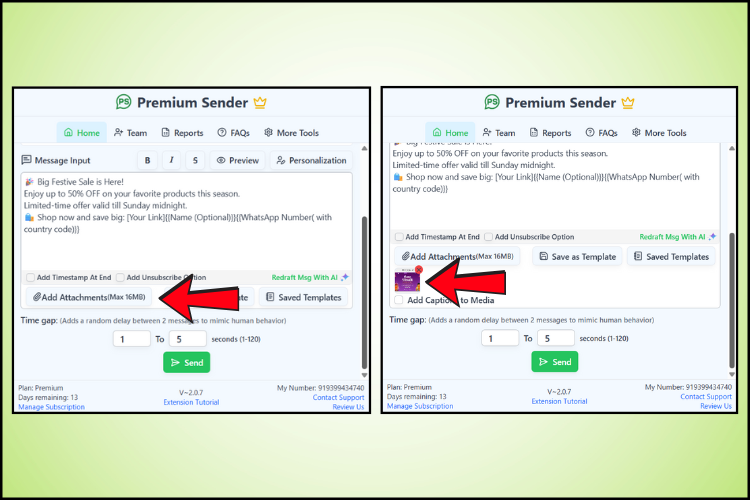
Step 4: Attach Important Files
Include up to 7 attachments like brochures, images, videos, PDFs, or other important documents to enhance your campaigns. With this WhatsApp bulk message software, you can send WhatsApp message without saving number and still share multimedia effortlessly to make your outreach more impactful.
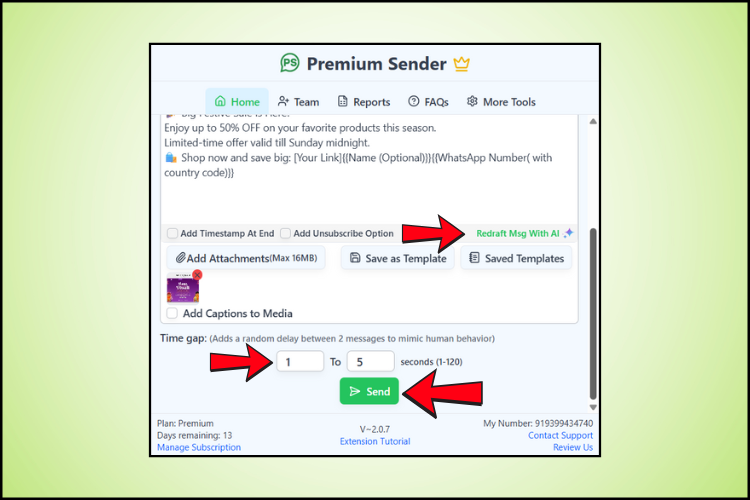
Step 5: Use AI Re-drafter and Set Delay to avoid WhatsApp Ban and Send
You can use AI Re-drafter if you want to edit the message. Use smart delay settings to prevent WhatsApp bans and ensure safe delivery. Premium Sender allows you to send bulk WhatsApp messages smoothly while maintaining compliance. Simply click send to deliver direct WhatsApp messages and boost your productivity without manually adding contacts.
Add Images, Videos, and Documents to WhatsApp Messages
Add Images, Videos, and Documents to WhatsApp Messages from Excel to enhance your messaging experience and make each message more impactful. These steps will help you enrich your communication while you send bulk WhatsApp message from Excel file:
Step 1: Launch the Premium Sender Extension and Upload Your WhatsApp Contacts
Open your browser and click on Premium Sender (also known as WA Sender).
Click the dropdown menu and choose ‘Upload Excel’ to import your contact list and send bulk WhatsApp message from Excel file.
Ensure your Excel sheet is clean, with properly formatted WhatsApp numbers (with country codes, no spaces) to automate WhatsApp messages from Excel smoothly.
Step 2: Add Attachments
Scroll below the message box and click ‘Add an Attachment Message.’
Use Excel to WhatsApp automation to include images, videos, or documents in your messages for better engagement.
Step 3: Send Bulk WhatsApp Messages
Upload any combination of Images (.jpg, .png), Videos (.mp4), or Documents (.pdf, .docx).
Attach up to 7 files per campaign and send bulk WhatsApp message from Excel file to multiple contacts without adding them manually.
Customize and Preview WhatsApp Messages Before Sending
Customize and Preview WhatsApp Messages Before Sending to ensure each message looks professional and resonates with your target audience. If you plan to send bulk WhatsApp message from Excel file, using Excel to WhatsApp automation and Excel WhatsApp automation for customization and previewing is key to delivering high-quality communication. Follow these steps to get it right and efficiently send WhatsApp messages from an Excel sheet while automating WhatsApp messages from Excel.
Step 1: Personalize Messages Using Excel Data
Take full advantage of Excel to WhatsApp automation by including dynamic fields such as customer names, order IDs, or location-specific details. This makes your messages feel tailored and relevant when you send bulk WhatsApp message from Excel file.
Step 2: Preview Messages Before Sending
Before you send WhatsApp messages from an Excel sheet, always preview them. This helps ensure that text, media, and personalized fields display correctly and that there are no errors in formatting while using Excel WhatsApp automation.
Step 3: Test Different Variations
Use A/B testing to compare message formats or styles. Testing multiple versions lets you identify which version of your WhatsApp bulk message from Excel performs best in terms of engagement and response.
Step 4: Check for Consistent Formatting
Make sure your message formatting is clean and free of errors. Proper line breaks, spacing, and alignment ensure your send bulk WhatsApp message from Excel looks professional and easy to read.
Step 5: Use Templates for Different Audience Segments
Create and apply different templates for unique customer groups such as leads, buyers, or past clients. Tailored templates increase the effectiveness of your bulk WhatsApp messaging from Excel and help you automate WhatsApp messages from Excel efficiently.
Manual WhatsApp Message Sending vs Using Premium Sender
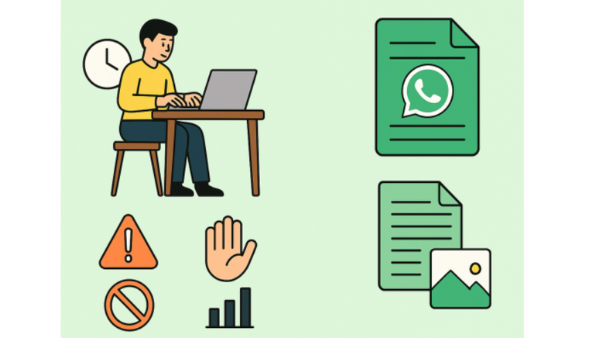
Sending WhatsApp messages manually can be time-consuming, prone to errors, and difficult to scale. Using Premium Sender along with Excel WhatsApp automation and Excel to WhatsApp automation simplifies the process, allowing you to efficiently send bulk WhatsApp message from Excel file. Here’s a comparison of the two approaches:
1. Time Efficiency
Manual sending requires typing or copying messages one by one, which is slow and inefficient. With Premium Sender, you can send WhatsApp messages from an Excel sheet in bulk, saving hours of work and ensuring timely delivery. This demonstrates how to send bulk WhatsApp message from Excel quickly.
2. Accuracy and Personalization
Manual messaging increases the risk of mistakes in phone numbers or message content. Using Excel to WhatsApp automation and Excel WhatsApp automation, Premium Sender allows you to personalize messages dynamically and maintain accuracy in your bulk WhatsApp messaging from Excel campaigns.
3. Scalability
Manual sending works only for a limited number of contacts. Premium Sender enables you to send bulk WhatsApp message from Excel file to hundreds or thousands of recipients at once, making it ideal for marketing campaigns, notifications, and updates.
4. Multimedia Support
Attaching images, videos, or documents manually can be cumbersome. With Premium Sender, you can easily attach rich media while sending WhatsApp through Excel, increasing engagement and the impact of your messages.
5. Compliance and Anti-Ban Features
Manual messaging can lead to account restrictions if messages are sent too frequently. Premium Sender offers smart delay and compliance-focused features to reduce the risk of bans while you automate WhatsApp messages from Excel.
6. Tracking and Analytics
Manual sending provides no insights on delivery or engagement. Premium Sender allows you to monitor delivery status, response rates, and campaign performance when you send bulk WhatsApp messages from Excel, helping optimize future campaigns.
Best Practices to Send Bulk WhatsApp Message from Excel
Best Practices to Send Bulk WhatsApp Message from Excel ensure that your communication is effective and avoids spam filters. If you want to successfully send bulk WhatsApp message from Excel file, using Excel WhatsApp automation and Excel to WhatsApp automation can help you send WhatsApp messages from an Excel sheet, automate WhatsApp messages from Excel, and manage professional bulk WhatsApp messaging from Excel efficiently.
1. Best Practices to Send Bulk WhatsApp Message from Excel
Best practices to send bulk WhatsApp message from Excel ensure that your communication is effective and avoids spam filters. If you want to successfully send bulk WhatsApp message from Excel file, using Excel WhatsApp automation is key to professional and high-quality messaging.
2. Segment Your Audience Wisely
Divide your contacts based on factors like location, purchase history, or customer type to send more targeted and relevant WhatsApp messages from Excel. Proper segmentation ensures your bulk WhatsApp messaging from Excel is effective and reaches the right audience.
3. Provide Real Value in Your Content
Make sure each message offers something useful, whether it’s an update, discount, or helpful information to improve interaction when you send bulk WhatsApp messages from Excel. Using Excel to WhatsApp automation can help personalize messages and increase engagement.
4. Avoid Frequent and Repetitive Messaging
Over-sending can lead to user frustration and may result in blocking. Use scheduled sending intervals to maintain trust and delivery success when you send WhatsApp messages from an Excel sheet using Excel WhatsApp automation.
5. Always Collect and Confirm User Consent
Before using any data to send WhatsApp messages from an Excel sheet, ensure recipients have opted in. This protects your brand and keeps your outreach compliant while you send bulk WhatsApp message from Excel file.
6. Track Performance and Refine Strategy
Use analytics tools within Premium Sender to monitor delivery, open rates, and responses. This helps you optimize future campaigns and improves how you send WhatsApp messages through Excel efficiently using Excel to WhatsApp automation.
Things to Consider Before Sending Bulk WhatsApp Messages
Things to Consider Before Sending Bulk WhatsApp Messages ensure that your messaging campaigns remain compliant, effective, and protected from account restrictions. Before you send bulk WhatsApp message from Excel file, keep these essential considerations in mind and leverage Excel to WhatsApp automation, Excel WhatsApp automation, and send WhatsApp through Excel for more efficient campaigns.
1. Review WhatsApp’s Terms and Conditions
Understand the platform’s guidelines for business communication. Violating WhatsApp’s policies while using Excel to WhatsApp automation or trying to send bulk WhatsApp message from Excel can lead to bans or restricted access when you send WhatsApp message from Excel.
2. Ensure Full Legal Compliance
Adhere to data protection laws like GDPR. When you send WhatsApp messages from an Excel sheet, confirm that your recipients have granted permission to receive messages. Following compliance ensures safe Excel WhatsApp automation and bulk WhatsApp messaging from Excel.
3. Be Mindful of Message Frequency and Timing
Avoid sending messages in rapid succession or during off-hours. Spamming can trigger flags and harm both your sender reputation and delivery rate when you automate WhatsApp messages from Excel or send WhatsApp through Excel.
4. Focus on Content Quality
Use clear, professional, and error-free messaging. Whether you’re sending images, documents, or plain text, make sure your WhatsApp bulk messages from Excel, send bulk WhatsApp messages, and send bulk WhatsApp message from Excel file reflect your brand positively while using Excel WhatsApp automation.
How Premium Sender Simplifies Bulk WhatsApp Messaging from Excel?
Managing bulk WhatsApp messaging manually can be tedious and error-prone, especially when dealing with large contact lists. Premium Sender integrates seamlessly with Excel to WhatsApp automation, allowing users to efficiently send bulk WhatsApp message from Excel file. With Excel WhatsApp automation, users can also send WhatsApp through Excel, automate WhatsApp messages from Excel, and send WhatsApp message from Excel sheet without any hassle. Here’s how Premium Sender simplifies the process:
1. Easy Excel Contact Upload
You can upload your entire contact list from an Excel sheet directly into Premium Sender. This ensures you can send WhatsApp messages from an Excel sheet without manually entering numbers, saving time and reducing errors. Excel to WhatsApp automation makes bulk uploads quick and reliable.
2. Automated Message Personalization
Premium Sender uses Excel data to personalize each message. You can include customer names, order IDs, or other details from your Excel sheet, making every WhatsApp message from Excel feel tailored and engaging. This ensures your campaigns using Excel WhatsApp automation are highly effective.
3. Quick Bulk Messaging
Instead of sending messages one by one, Premium Sender allows you to send bulk WhatsApp messages from Excel in just a few clicks. This accelerates campaigns and ensures timely communication, while showing exactly how to send bulk WhatsApp message from Excel efficiently.
4. Multimedia Attachments Support
Attach images, videos, PDFs, or documents directly from Excel through Premium Sender. This feature enhances engagement and helps your bulk WhatsApp messaging from Excel stand out. Using Excel to WhatsApp automation, attaching multiple media types is simple and fast.
5. Scheduling and Smart Sending
Premium Sender lets you schedule messages and control sending intervals. This prevents spam-like behavior while you automate WhatsApp messages from Excel, reducing the risk of bans and ensuring your campaigns are compliant.
6. Tracking and Reporting
Monitor delivery, open rates, and responses in real-time. Using Excel WhatsApp automation with Premium Sender helps you track the performance of your send bulk WhatsApp message from Excel file campaigns and refine future strategies for better results.
Advantages of Using Premium Sender to Send WhatsApp Messages from Excel File
Using Premium Sender to send bulk WhatsApp message from Excel file includes a robust set of features that simplify and strengthen your WhatsApp bulk messaging campaigns. Here’s why Premium Sender is the smart choice when you want to send bulk WhatsApp message from Excel file and leverage Excel to WhatsApp automation for efficient campaigns.
1. User-Friendly Interface for All Users
Premium Sender is built with simplicity in mind. Its intuitive layout ensures that even non-technical users can easily send WhatsApp messages from Excel without complications. This makes Excel WhatsApp automation accessible for everyone and simplifies how to send bulk WhatsApp message from Excel.
2. High Speed and Massive Scalability
Whether you’re targeting hundreds or thousands of recipients, Premium Sender allows you to send bulk WhatsApp messages from Excel quickly and reliably, ideal for marketing, updates, or alerts. You can automate WhatsApp messages from Excel effortlessly and scale campaigns using Excel to WhatsApp automation.
3. Detailed Analytics and Delivery Reports
Track message delivery rates, customer engagement, and response data in real-time. This insight helps you refine how you send WhatsApp messages from Excel sheets for better performance and more effective bulk WhatsApp messaging from Excel.
4. Support for Rich Media Attachments
Easily include PDFs, videos, product images, or brochures with each message. This boosts interaction and helps your WhatsApp messages from Excel stand out in a crowded inbox while using Excel WhatsApp automation to attach multimedia efficiently.
5. Anti-Ban Technology for Safe Sending
With smart delay controls and compliance-focused features, Premium Sender reduces the risk of your number being flagged or banned when you send bulk WhatsApp messages from Excel. This ensures safe and reliable Excel to WhatsApp automation for all your messaging campaigns.
Use Cases of Sending Bulk WhatsApp Message from Excel File
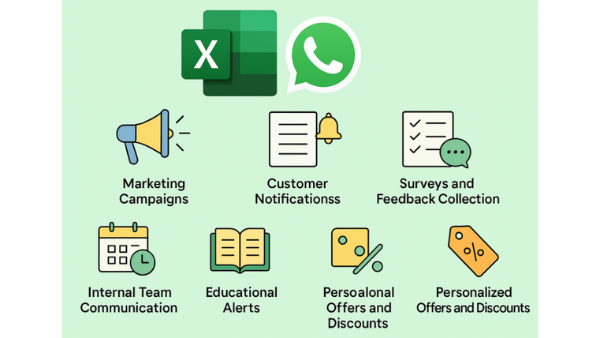
Sending bulk WhatsApp message from Excel file is a powerful method for businesses and individuals to streamline communication. With Excel WhatsApp automation, Excel to WhatsApp automation, and the ability to send WhatsApp message from Excel sheet, you can efficiently send bulk WhatsApp message from Excel file while personalizing content for each recipient. This section explains the most effective ways to send bulk WhatsApp message from Excel file, including how to send WhatsApp through Excel, automate WhatsApp messages from Excel, and use Excel data for better campaign management.
1. Marketing Campaigns
Promote products, services, or special offers by using Premium Sender to send bulk WhatsApp message from Excel file. Personalized campaigns using Excel to WhatsApp automation and send WhatsApp through Excel help improve engagement and conversion rates. Using structured Excel sheets allows you to dynamically merge data into messages for each recipient.
2. Customer Notifications
Send order confirmations, delivery updates, payment reminders, or appointment alerts by automating WhatsApp messages from Excel. Understanding how to send bulk messages on WhatsApp from Excel ensures accurate and timely notifications. Excel sheets can store contact details, transaction IDs, and other dynamic fields for seamless message personalization.
3. Event Invitations and Updates
Invite clients or team members to events, webinars, or workshops by sending bulk WhatsApp messages from Excel. With Excel WhatsApp automation, you can send WhatsApp message from Excel sheet for reminders, updates, or follow-ups, using Excel to maintain schedules and attendee lists.
4. Surveys and Feedback Collection
Reach out to customers or employees for surveys and feedback by using automate WhatsApp messages from Excel. Knowing how to send bulk WhatsApp message from Excel helps track responses efficiently. Excel can also store survey links, user IDs, and response tracking for organized bulk messaging.
5. Internal Team Communication
Coordinate with internal teams or departments by sending send bulk WhatsApp messages for project updates, meeting reminders, or announcements. Using send WhatsApp through Excel ensures all team members receive consistent communication. Excel sheets can be used to segment teams, assign messages, and schedule automated sending.
6. Educational Alerts
Schools, colleges, or training institutes can use Excel WhatsApp automation to send announcements, assignment notifications, or exam schedules. Learning how to send WhatsApp message from Excel sheet helps deliver bulk alerts efficiently. Excel can track student lists, class sections, and parent contacts for personalized bulk messaging.
7. Personalized Offers and Discounts
Send customized offers, discount codes, or loyalty rewards to customers by leveraging Excel to WhatsApp automation and send bulk WhatsApp message without adding contact. Using structured Excel sheets allows dynamic personalization of offers, increasing engagement and conversion rates when you send bulk WhatsApp message from Excel file.
Conclusion
In conclusion, learning how to send WhatsApp message from Excel file is a valuable skill that can significantly streamline your communication processes. By utilizing Premium Sender, you can send bulk WhatsApp message from Excel file with ease and efficiency. Whether you’re managing a marketing campaign, sending promotional offers, or delivering personalized updates to your customers, sending bulk WhatsApp messages from Excel allows you to connect with your audience quickly and professionally. Using Excel WhatsApp automation and Excel to WhatsApp automation, you can send WhatsApp messages from an Excel sheet and automate repetitive messaging tasks for maximum efficiency.
By following the best practices outlined in this guide, you can ensure that your bulk WhatsApp messaging from Excel campaigns are successful, compliant, and highly effective. Use Premium Sender to send bulk WhatsApp message from Excel file, send 1000 WhatsApp messages in one click, and leverage automate WhatsApp messages from Excel for improved engagement and delivery. Visit the Premium Sender homepage now to discover more about sending bulk WhatsApp messages from Excel with ease and reliability.
FAQ: Send Bulk WhatsApp Message from Excel File
How to send WhatsApp messages from Excel file?
You can send bulk WhatsApp message from Excel file efficiently using Premium Sender instead of relying on manual one-by-one methods. While a traditional Excel formula can be used to send individual messages, it is time-consuming and prone to errors.
Using Premium sender to send bulk messages from Excel to WhatsApp
To send WhatsApp messages from Excel file or send bulk whatsapp message from excel file, follow these steps:
Prepare Your Excel File: Ensure that your Excel file has a column for phone numbers (in international format) and a column for personalized message data (names, order IDs, etc.).
Install Premium Sender Plugin: Download and install Premium Sender to automate sending messages.
Upload the Excel File: Upload your Excel file to the tool.
Send Messages: Customize your message, preview, and hit “Send” to dispatch WhatsApp messages from Excel.
Using an Excel Formula for One Message at a Time
This method creates a clickable link in your spreadsheet that opens a pre-filled WhatsApp chat:
Prepare Your Excel Sheet
Create two columns: one for phone numbers and one for the message text.Create the Formula
In a new column, enter a formula like this, replacing A1 with the cell containing the phone number and B1 with the cell containing the message:=HYPERLINK("https://api.whatsapp.com/send?phone="&A1&"&text="&B1, "Send Message")
While this approach works for sending messages individually, using Premium Sender with Excel WhatsApp automation and Excel to WhatsApp automation allows you to send bulk WhatsApp message from Excel file in bulk. This method eliminates repetitive manual work, ensures accurate delivery, and lets you send WhatsApp through Excel to multiple contacts efficiently.
How to Send Bulk WhatsApp Messages from Excel?
You can send bulk WhatsApp message from Excel file efficiently by using Premium Sender, Excel formulas for manual sending, or other automation methods. With Premium Sender, simply prepare your Excel sheet with contact information and message content, then upload it to the tool. The platform handles sending automatically, allowing you to send WhatsApp message from Excel sheet without manual effort.
Alternatively, for a manual approach, you can use an Excel hyperlink formula to send messages one by one. While this works, using Premium Sender with Excel WhatsApp automation and Excel to WhatsApp automation is far more efficient, letting you send WhatsApp through Excel to multiple contacts in bulk with accuracy and speed.
To customize and preview WhatsApp messages before sending:
Personalize with Excel Data: Use dynamic fields from your Excel to WhatsApp sheet, like customer names or discounts.
Preview: Check your message to ensure that all the personalization works well and your media is attached.
Test Different Variations: Customize multiple versions of your message to test the best performing message before sending your WhatsApp bulk messages from Excel or send bulk whatsapp message from excel file.
What Are the Best Practices for Sending WhatsApp Bulk Messages from Excel?
For best practices for sending WhatsApp bulk messages from Excel, follow these tips:
Segment Your Audience: Organize your contacts by location, demographics, or purchase history for a more targeted approach when send bulk WhatsApp message from Excel.
Get Consent: Always ensure that your recipients have opted in to receive your bulk messages.
Track Results: Use Premium Sender’s reports to monitor your message delivery success and engagement rates.
What Are the Advantages of Using Premium Sender to Send WhatsApp Messages from Excel File?
To send bulk WhatsApp message from Excel file, you can use Premium Sender instead of manual methods or Excel formulas. Start by preparing your Excel sheet with phone numbers in international format and any relevant recipient data. Premium Sender ensures you can send WhatsApp message from Excel sheet only to opted-in contacts, maintaining compliance and privacy.
Best practices include personalizing messages using data from your Excel sheet, adding time delays between messages, and leveraging Excel WhatsApp automation to schedule and automate sending. This approach allows you to send WhatsApp through Excel efficiently, avoiding spam flags while running professional bulk messaging campaigns.
The advantages of using Premium Sender to send bulk whatsapp message from excel file include:
Ease of Use: Premium Sender provides a simple interface for anyone to send WhatsApp messages from Excel with minimal effort.
Speed and Scalability: You can send bulk WhatsApp messages from Excel to hundreds or thousands of contacts at once.
Advanced Media Support: Attach images, videos, and other files directly from Excel, making your WhatsApp messages more engaging.
Anti-Ban Technology: Premium Sender comes with built-in anti-ban features, ensuring that your account stays safe while sending bulk WhatsApp messages from Excel.
How to Automate Sending WhatsApp Messages from Excel?
You can send bulk WhatsApp message from Excel file efficiently using Premium Sender instead of relying on manual formulas or semi-automated methods. With Excel WhatsApp automation and Excel to WhatsApp automation, Premium Sender allows you to send messages to multiple contacts directly from your Excel sheet without clicking links one by one.
Method 1: Automate sending WhatsApp messages from Excel using Premium Sender:
Set Up Your Excel File: Include all necessary contact details and data that you want to use in your WhatsApp messages.
Install Premium Sender: Use this tool to easily automate sending WhatsApp messages from Excel.
Upload and Customize: Upload the file and customize your message, and Premium Sender will automatically send bulk whatsapp message from excel file.
Method 2: Using Excel Formulas for Semi-Automated Sending
For reference, a basic semi-automated method uses Excel formulas:
Prepare Your Spreadsheet
List phone numbers in one column and messages in another. Ensure phone numbers include the country code and have no spaces or special characters.Create the Hyperlink Formula
In a new column, enter a formula like:=HYPERLINK("https://api.whatsapp.com/send?phone="&A2&"&text="&B2)
Here, A2 contains the phone number and B2 contains the message. You can add pre-defined text to your messages as needed.Populate the Formula
Drag the fill handle down to apply the formula to all your contacts.Click and Send
In this manual method, you would click each link to open WhatsApp and then send the message.
While this works for a few contacts, using Premium Sender allows you to send WhatsApp message from Excel sheet automatically to all recipients. You can also send WhatsApp through Excel with rich media, personalization, and scheduled sending, making it far more efficient than manual or semi-automated approaches.
How to Send WhatsApp Messages from Excel Sheet Without VBA?
You can send bulk WhatsApp message from Excel file easily using Premium Sender. Instead of manually sending messages with Excel formulas, Premium Sender uses Excel WhatsApp automation and Excel to WhatsApp automation to deliver messages automatically, making it simple to send bulk WhatsApp message from Excel file to multiple contacts.
Steps to Send WhatsApp Messages from Excel
Prepare Your Excel Sheet
Add columns for phone numbers (with country code) and message content.Create Hyperlinks (Manual Reference)
Use the formula=HYPERLINK("https://wa.me/"&A1&"?text="&ENCODEURL(B1),"Send WhatsApp")to generate clickable links.Drag and Populate
Apply the formula to all rows to create unique links for each contact.Send Messages
Manual sending requires clicking each link, but with Premium Sender, you can send bulk WhatsApp message from Excel file automatically, send WhatsApp through Excel, and include media or personalized content for efficient bulk messaging.
How to send 1000 messages at once in WhatsApp?
You can’t send 1000 texts at once with the regular WhatsApp app, and the Broadcast feature only allows up to 100 contacts at a time. For larger volumes, using Premium Sender with Excel WhatsApp automation and Excel to WhatsApp automation lets you send bulk WhatsApp message from Excel file efficiently to hundreds or thousands of contacts.
Steps to Send WhatsApp Messages Using Premium Sender
Upload Your Excel Contacts
Import your Excel sheet containing phone numbers and message content directly into Premium Sender. Ensure numbers are in international format for smooth delivery.Add Multimedia and Attachments
Include images, videos, or documents from Excel to enhance engagement when you send WhatsApp message from Excel sheet.Customize and Preview Messages
Use Excel data to personalize each message with names, order IDs, or other details, and preview them before sending.Send Bulk WhatsApp Messages Automatically
Schedule and send messages to multiple contacts without manual clicking, using Excel to WhatsApp automation for fast and reliable bulk messaging.
How to send bulk WhatsApp messages from excel for free?
You can send bulk WhatsApp message from Excel file efficiently using Premium Sender, without relying on VBA scripts or other browser extensions. Instead of manually sending messages, Premium Sender leverages Excel WhatsApp automation and Excel to WhatsApp automation to deliver messages automatically to multiple contacts.
Steps to Send WhatsApp Messages Using Premium Sender
Upload Your Excel Contacts
Import your Excel sheet containing phone numbers and message content directly into Premium Sender. Ensure all numbers are in international format for accurate delivery.Add Multimedia and Attachments
Attach images, videos, or documents from Excel to make your messages more engaging when you send WhatsApp message from Excel sheet.Customize and Preview Messages
Personalize messages using data from your Excel sheet, like customer names, order IDs, or location-specific details, and preview them before sending.Send Bulk WhatsApp Messages Automatically
Use Premium Sender to schedule and send messages to multiple contacts at once, avoiding manual clicks while efficiently sending WhatsApp through Excel.
How to send bulk WhatsApp message from excel sheet?
You can send bulk WhatsApp message from Excel file easily using Premium Sender, without relying on VBA scripts or manual Excel formulas. With Excel WhatsApp automation and Excel to WhatsApp automation, Premium Sender allows you to upload your Excel sheet with contact details and message content, and automatically send WhatsApp messages to multiple recipients. This approach saves time, reduces errors, and lets you send WhatsApp through Excel efficiently.
Steps to Send WhatsApp Messages Using Premium Sender
Upload Your Excel Contacts
Import your Excel sheet containing phone numbers and message content directly into Premium Sender. Ensure all numbers are in international format for accurate delivery.Add Multimedia and Attachments
Attach images, videos, or documents from Excel to make your messages more engaging when you send WhatsApp message from Excel sheet.Customize and Preview Messages
Personalize messages using data from your Excel sheet, like customer names, order IDs, or location-specific details, and preview them before sending.Send Bulk WhatsApp Messages Automatically
Schedule and send messages to multiple contacts at once, avoiding manual clicks while efficiently sending WhatsApp through Excel.Track Performance
Use Premium Sender analytics to monitor delivery rates, open rates, and responses, helping you refine future campaigns when you send bulk WhatsApp message from Excel file.
How to send bulk messages on WhatsApp business from excel?
To send bulk WhatsApp message from Excel file, you need a reliable tool like Premium Sender. Instead of using VBA scripts or other browser extensions, Premium Sender leverages Excel WhatsApp automation and Excel to WhatsApp automation to send messages efficiently to hundreds or thousands of contacts.
Steps to Send WhatsApp Messages Using Premium Sender
Prepare and Upload Your Excel File
Create a spreadsheet with phone numbers in international format and any additional columns for personalization like Name, Product, or Order Number. Upload this Excel sheet directly into Premium Sender.Map Columns and Personalize Messages
Map your Excel columns to the corresponding fields in Premium Sender. Use placeholders such as {Name} or {Order Number} to personalize each message automatically.Add Multimedia and Attachments
Attach images, videos, PDFs, or documents from your Excel sheet to make your messages more engaging when you send WhatsApp message from Excel sheet.Preview and Customize Messages
Review your messages to ensure personalization and formatting are correct. Adjust templates as needed for better engagement.Send Bulk WhatsApp Messages Automatically
Click send to deliver messages to all recipients. Premium Sender automatically handles sending, allowing you to send bulk WhatsApp message from Excel file quickly and efficiently.Track Campaign Performance
Monitor delivery, open rates, and responses with Premium Sender analytics to refine future campaigns and improve your Excel WhatsApp automation workflow.
How to send bulk WhatsApp messages from excel using vba?
You can send bulk WhatsApp message from Excel file using VBA to automate the process directly from your spreadsheet. This method lets you send messages without manually opening WhatsApp for each contact, though it requires some setup in Excel.
Steps to Send WhatsApp Messages Using VBA
Prepare Your Excel Sheet
Create columns for phone numbers (in international format) and the message content. You can also include additional columns for personalization such as Name, Product, or Order ID.Open the VBA Editor in Excel
PressAlt + F11to open the VBA editor, then insert a new module.Write the VBA Script
Use a script that opens WhatsApp Web, reads the phone numbers and messages from Excel, and sends the message automatically. Ensure the script handles delays between messages to avoid being flagged as spam.Run the Script
Execute the VBA script in Excel. The script will open WhatsApp Web for each contact and send the personalized message from your spreadsheet.Monitor and Refine
Check that messages are delivered correctly. You can enhance the VBA script to include media attachments or improve automation efficiency, making your bulk WhatsApp messaging from Excel faster and more reliable.